
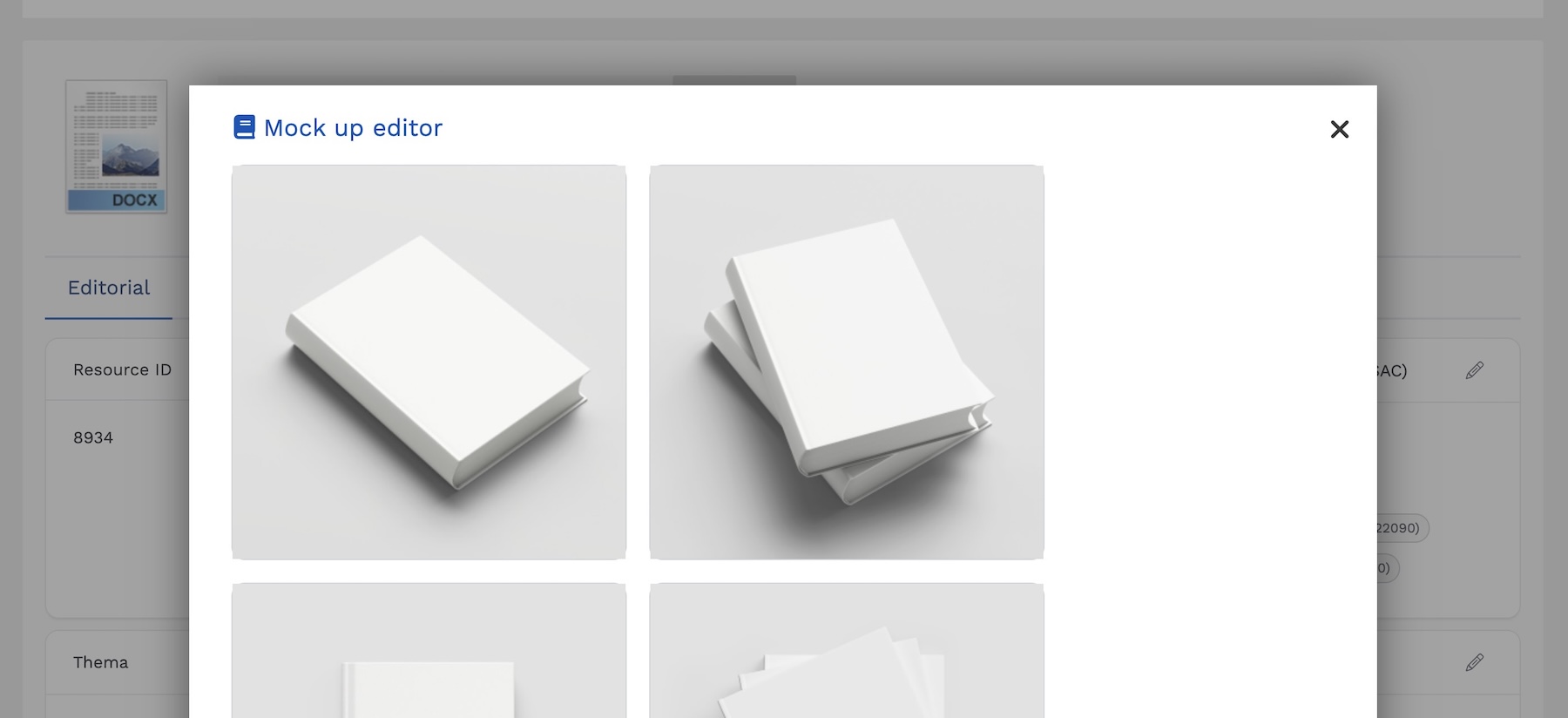
Among Insight’s image tools is a Mockup Editor, which helps you create 3D book images with transparent backgrounds using your cover designs.
These mockup images can be downloaded, and they are available to use in Insight’s Image Editor tool—which gives you a quick way to create advertising and social media graphics.
Here are three ways to use our Mockup Editor.
Use Existing Book Cover Images

If you’ve uploaded a book to Insight which already has a cover image, that image will automatically be available in the Mockup Editor.
- From your book, click Actions — Image Tools — Mock Up Editor.
- Next, select the 3D design you want to use.
- Then, in the editor, select your cover from the images at the bottom of the window.
- Alternatively, upload an image from your computer by clicking “Select Images” at the bottom of the window.
- Drag the cover image to fit the canvas, then click “Save and Exit” at the top right.
The resulting mockup image will be saved in the Images tab of your document. You can download it, or use it in Insight’s Image Editor.
Add Elements to a Cover

Insight’s Mockup Editor includes all the same tools as our Image Editor, including AI image generation, text boxes, and shapes.
You can use these tools to add elements to an existing cover image. For example, if your book has won an award, you can quickly at the award logo to your cover.
- Open the Mockup Editor and place your cover image into editor.
- Click “Select Images” at the bottom of the window to upload new graphics.
- Or use the text and shape tools add elements to the design.
Draft Cover Design Ideas

Using the Mockup Editor’s tools like AI image generation, text boxes, and shapes, you can test various cover design ideas. Generate, add, and move elements, then view your ideas in 3D.
This is an quick way to test different layouts and visuals, and to share ideas with your designers.
Want to Know More?
If you want more information about this tool, or you have more specific mockup requirements, contact us at support@veristage.com.