
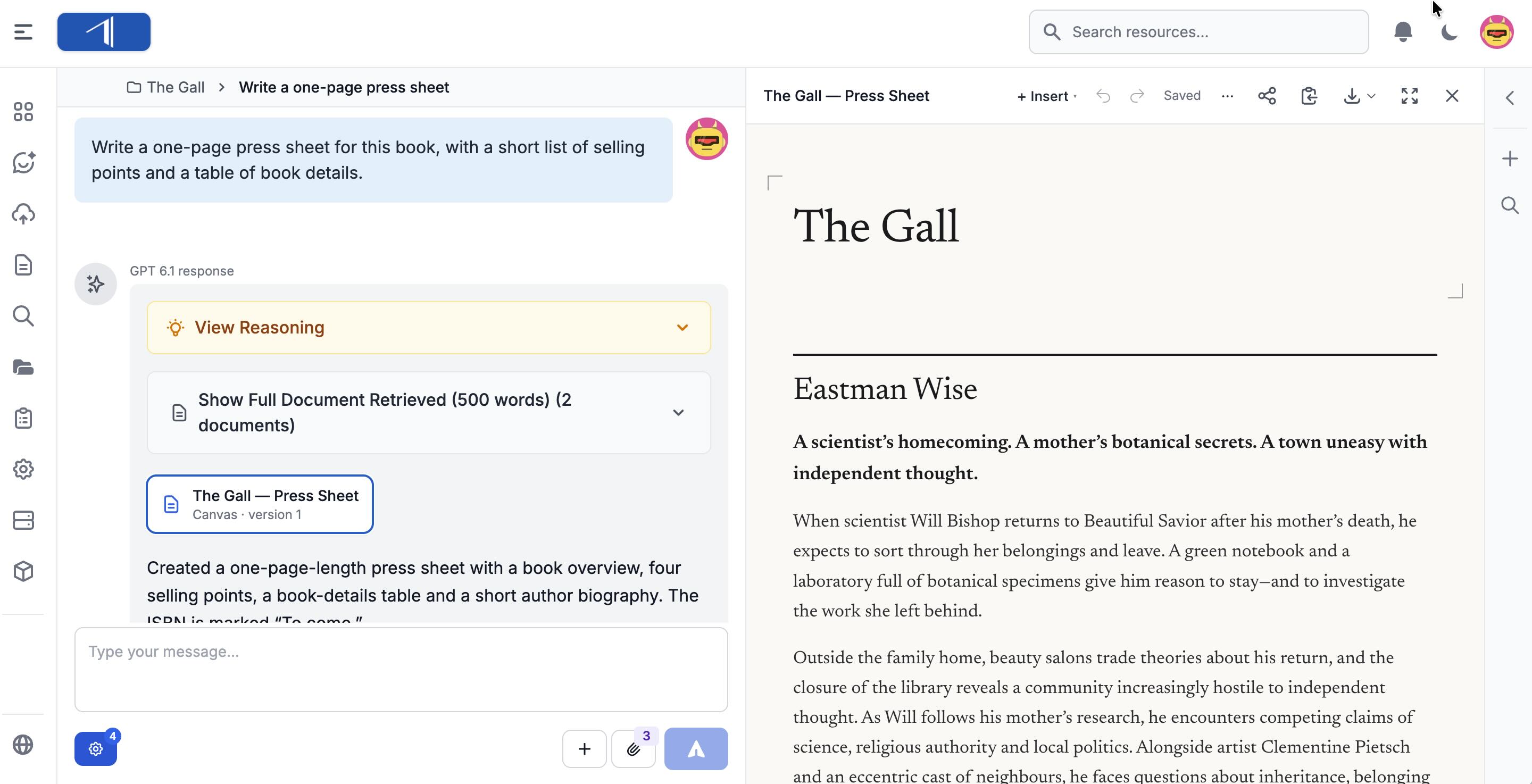
When you ask AI Chat to write something like an info sheet, a summary, a pitch, or marketing copy, it can open the text in a Canvas beside the conversation.
Edit the text yourself, ask the AI to change one part of it, go back to an earlier version, and download or share the result.
Watch the Video
Create a Canvas

- Open AI Chat and add a book or document to the chat.
- Ask for the text you need, and say you want it in a canvas. For example: “Write a one-page overview of this book for booksellers in a canvas, with a short list of selling points and a table of book details.”
- Click the Canvas · version 1 card to open the canvas.
Use the Wider icon in the header to give the canvas more room, and Close (x icon) to close it. To open the canvas again later, click its card in the chat.
Edit the Text Yourself
Click anywhere in the canvas and type. Your changes are saved automatically. The header shows Saved when they are.

Format text: Select a word or a passage. A bar appears with text styles, bold, italic, lists, links, highlighting, and more.

Add elements: Click Insert to add, for example:
- Headings, lists, checklists, quotes, and tables
- Callouts and panels for text you want to stand out
- Images (you can also paste or drag an image into the canvas)
- Columns, steps, big figures, collapsible sections, and footnotes

Move or change a block: Hover over a paragraph or heading and click the grip icon (six dots) that appears beside it. From there you can turn it into another kind of block, move it up or down, duplicate it, or delete it.
More options: Click ⋯ (in the header menu) for Find and replace, the word count, and options to view or edit the text as markdown. Undo and Redo are in the header.
Edit with AI

You can ask the AI to change one part of the text and leave the rest as it is.
Change a passage:
- Select the text you want to change.
- Click Edit with AI. Your selection is attached to the chat box, with the number of words.
- In the chat box, say what you want, for example “Make this paragraph shorter,” and send.
The AI changes only the text you selected and saves the result as a new version.
Change a whole section:
- Hover over the section heading and click the grip beside it.
- Choose Edit this section with AI. The chat box shows the section name and whole section.
- Say what you want, for example “Cut this to three selling points, written for booksellers.”
Change the whole text: Just ask in the chat, for example “Make the whole overview more formal” or “Add a short author bio at the end.”
Go Back to an Earlier Version

Insight keeps every version of the text. Each AI edit makes a new version, and so do your own edits. Edits you make within a few minutes of each other count as one version.
- Use the arrows in the header (Previous version and Next version) to step through the versions. The header shows where you are, for example v3 of 4.
- When you are looking at an older version, a bar at the top says so. Click Restore this version to use it again, or Back to latest to return.
To edit an older version, restore it first, then edit it.
Download and Share

Download: Click Download and choose Word (.docx), PDF, Markdown (.md), or Web page (.html). To paste the text somewhere else, click the Copy icon.

Share a link:
- Click Share.
- Under Who can see it, choose:
- People in your organisation: They sign in to Insight to see it.
- Anyone with the link: No sign-in needed. Use this for people outside your company.
- Under Link expires, choose Never, or after 7, 30, or 90 days.
- Click Create and copy link, and paste the link wherever you need it.
The people you share with see the text and can download it as Word or PDF. They can’t edit it.
A link shows the version you shared. If you change the text later, open Share again and click Update to version… next to the link, so people see the latest version. Under Links to this canvas you can also copy a link again, see how many times it has been viewed, or click Revoke to stop it from working.
Open Your Own Document in a Canvas
You can work on your own document in a canvas, for example an info sheet, a catalog entry, or a short piece of copy.
- In AI Chat, click the paperclip and upload the file, or add a document from Insight to the chat.
- Ask, for example, “Open the info sheet in a canvas.”
- Click the canvas card in the reply.
Word documents (.docx, also .doc, .odt, and .rtf) and web pages open with most of their formatting:
- Kept: headings, lists, tables, links, footnotes, and pictures. Text in boxes comes across as callouts.
- Not kept: fonts, colors, page layout, page breaks, tables of contents, and comments.
- Tracked changes: Canvas accepts all changes when it opens the file. It does not track new changes you make in the canvas.
PDFs open as plain text, without their layout.
Your original file stays as it is. Canvas works on a copy. A canvas can hold up to about 150,000 words.
What Canvas Is For
Canvas is for writing and editing text: info sheets, summaries, descriptions, pitches, scripts, and marketing and sales material. It is not a Word editor, and it doesn’t track changes.
For work on a full manuscript: Use Insight’s built-in tools, which keep your Word file and its formatting:
- To correct a manuscript with tracked changes, use Proofread.
- To translate a book, use Translate.
You can start both from AI Chat. Tell the chat what you need, and it sets up the job for you.
Need Help?
Contact us at support@veristage.com if you have questions.