
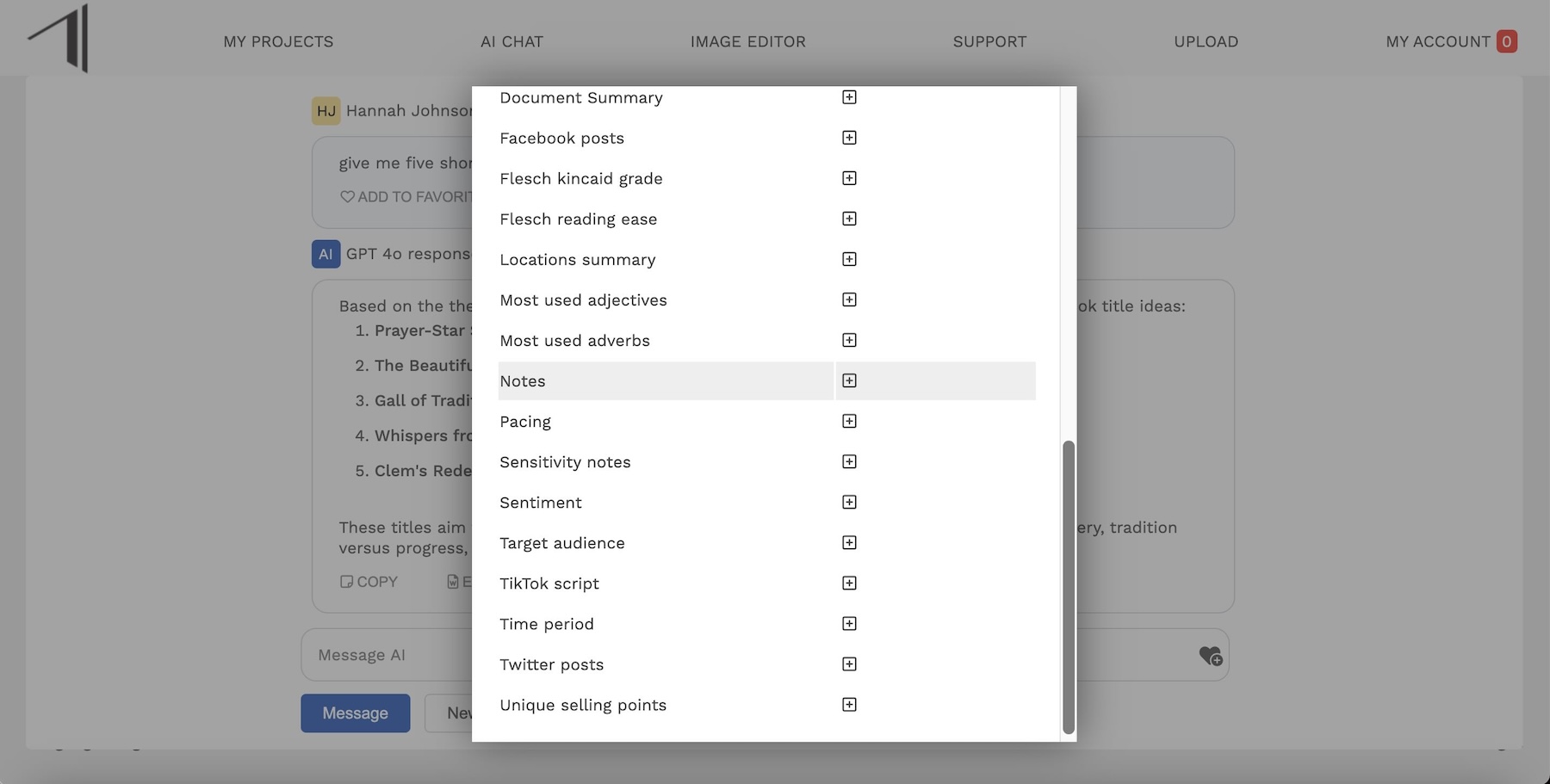
Did you know that each book or document in Insight has a “Notes” field where you can save extra information? This all-purpose text field is the ideal place to save ideas and content you generate in AI Chat.
You can add content to this field from AI Chat, or type/paste text directly into it.
Where Is the ‘Notes’ Field?
This field is hidden when it’s empty, and it appears in the Editorial tab as soon as there’s some content saved there. You can add and edit content in Notes in two ways:
From the Edit View
- Click the Edit button from any book or document in Insight.
- Scroll down just past the SEO keywords, and you’ll see Notes.
- Type or paste in text, and Insight automatically saves this content.
- Scroll to the top of the screen and click “Back to resource view” to return to your book and see Notes in the Editorial tab.
From AI Chat
AI Chat is ideal for generating ideas and extra content about your book—like book title ideas, marketing plans, reader guide outlines, etc. If this content doesn’t fit neatly into Insights pre-defined fields, you can save it in Notes.
- Head to AI Chat and select a book from the document selector.
- Once you’ve created some content you want to save, click the “Save to Document” button at the bottom of the chat window.
- In the next pop-up, you can select which field you want to save this content to. In this case, choose “Notes”.
If you already have content in the Notes field, Insight will add this new content below what’s already there so you don’t lose anything.