
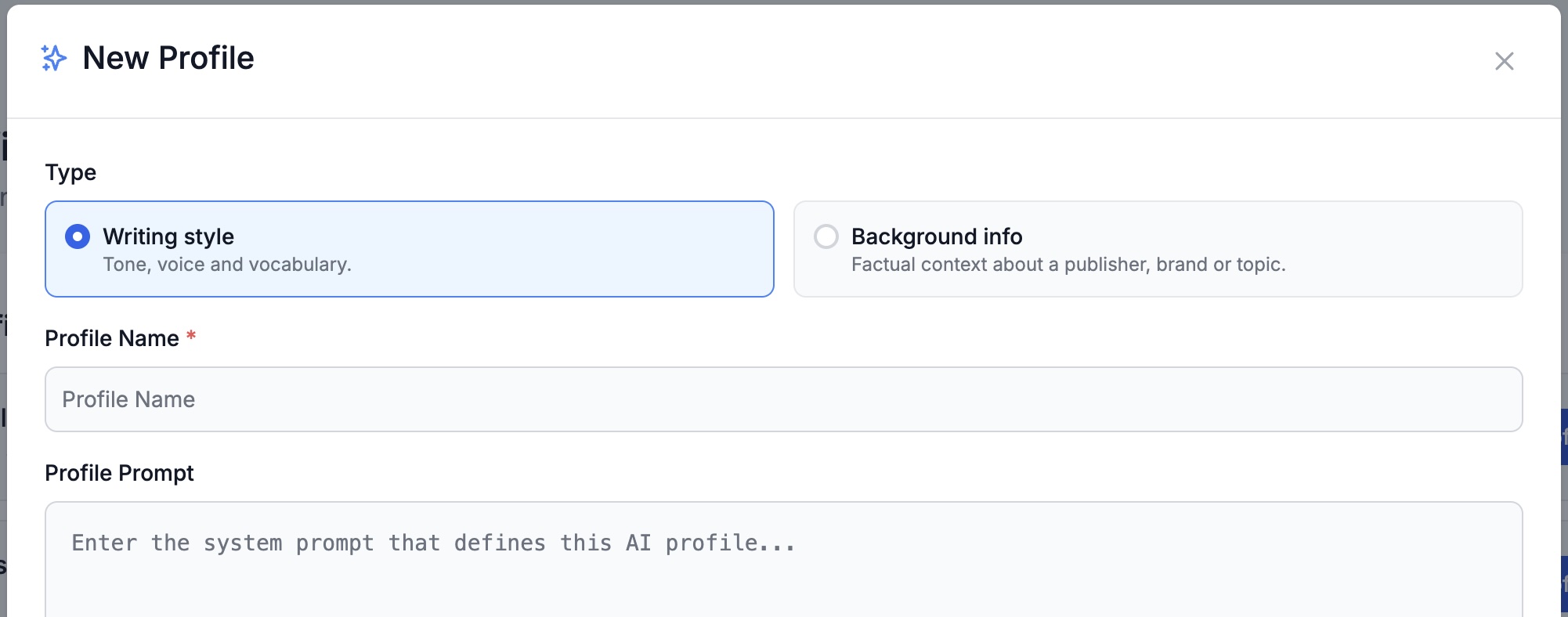
AI Profiles let you tell Insight how to write. Set up these instructions once, instead of in every prompt. There are two types, and they do different jobs:
- Writing style defines tone, voice, and vocabulary: how the AI should sound.
- Background info provides factual context about a publisher, imprint, brand, or topic: what the AI should know.
How AI Profiles Work
A profile shapes AI-generated text in two places: the automatic analysis when you upload a resource (metadata, descriptions, marketing content) and your conversations in AI Chat. Profiles only take effect when you select them. If you select none, you get Insight’s default results.
AI Profiles don’t change how other tools like Proofread or Translate work.
On Upload
When uploading a resource, click Select AI profiles in the AI profiles field and pick from the Writing style and Background info sections.
You can apply a combination of style and background profiles. Insight applies your selected profiles to the fields it generates during analysis.
In AI Chat
Click the style button just above the chat message box and choose the profiles you want to use. Your selection stays active until you change it.
Use Background and Writing Profiles Together
The two types can be used on their own or together.
Example 1: You are marketing a new crime thriller. You upload the book in Insight and apply:
- A background info profile that describes your crime imprint, its list and its readership
- A writing style profile that defines the voice (tone, word choice, sentence structure, grammar) your team prefers for crime fiction marketing content.
The marketing copy Insight generates now mentions the right imprint context and sounds like your brand instead of a generic AI.
Example 2: An editor at a university press uploads a manuscript for evaluation. A background info profile describing what the press does and doesn’t acquire is applied when the book is uploaded. Insight’s evaluation is created with those acquisitions guidelines in mind to give the editor a quick picture of how the book fits into the press’s program.
More ways to use profiles:
- A writing style for press releases, so announcements follow the same structure and tone no matter who drafts them.
- A background info profile for an individual editor’s remit and taste, ready to use when uploading submissions, chatting with the book, and drafting author notes.
- A writing style per genre or series, because marketing text about cozy crime and dark thrillers should not sound the same.
- A background info profile per imprint, so descriptions and marketing copy reference the right list and readership.
Create Your Own Profile
From the user menu (top right), go to AI Profiles and click New Profile.
You don’t have to write the prompt from scratch: in the Documents section, click Add Documents to upload material you already have (writing samples, the About Us text from your website, a style guide). Click Generate Profile to have Insight draft it for you.
Profiles can be edited afterwards, so you can refine it over time as you see how it performs.
Share With Your Team
Under Sharing, choose Personal (only me) or Share with my user group. A shared profile means everyone works from the same instructions and gets consistent results, and nobody has to write their own version of the house style.
You can change the sharing option anytime, so you can create and test a profile before sharing it with the team.