
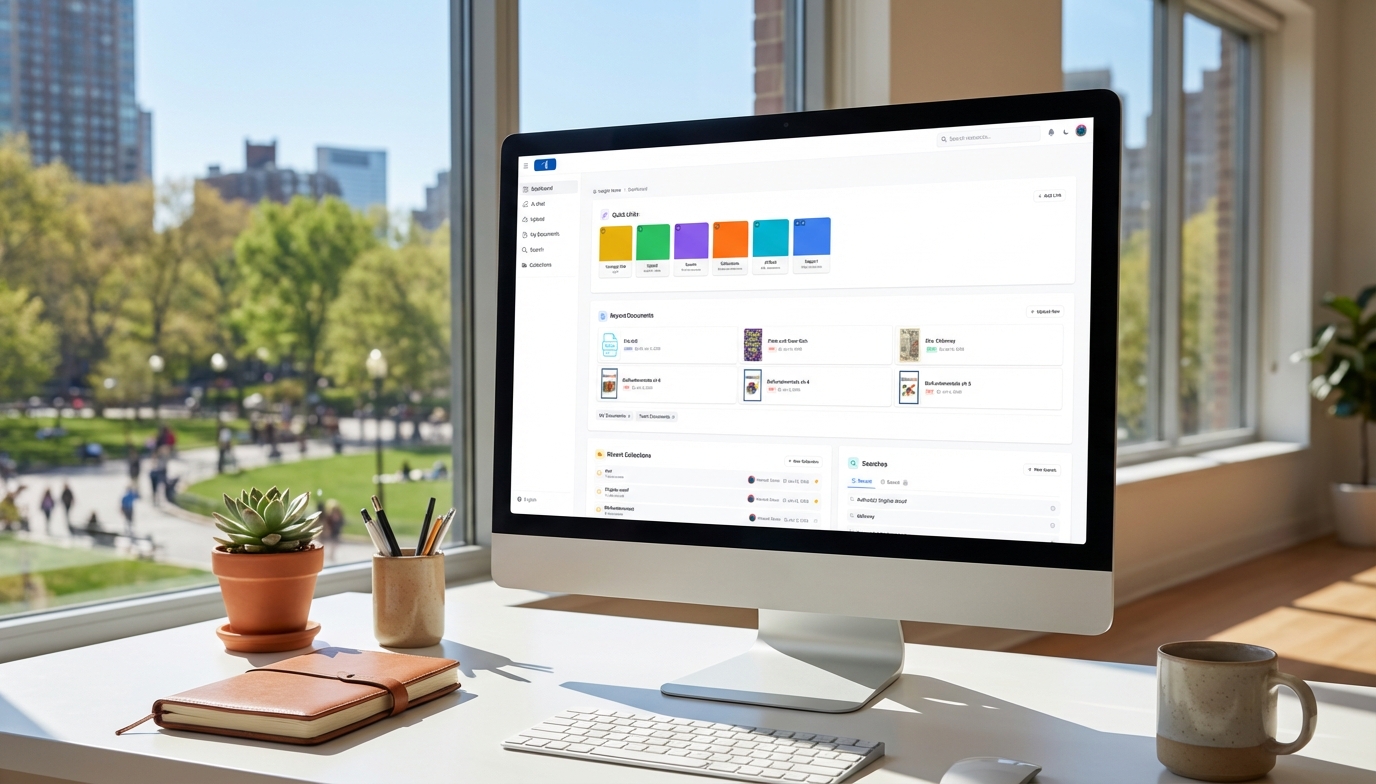
Welcome to Insight 2.0! We’ve redesigned the platform with a fresh interface, powerful new features, and streamlined workflows. This guide will help you navigate the changes and get up to speed quickly.
Inside this Guide:
At a Glance: Key Changes
| What’s New | What It Means for You |
|---|---|
| Redesigned dashboard | Customizable Quick Links, dark/light mode, streamlined navigation |
| Collections replace Projects | More flexible organization with manual and auto-updating search collections |
| New sidebar navigation | Collapsible menu with quick access to all major features |
| AI Chat interface | Visual tool toggles, right-side chat history bar, upgraded performance |
| Proofread tool | Customizable proofreading rules for Word documents |
Navigation: Where Did Everything Go?
The New Sidebar
The main menu is now on the left side of the screen. You can collapse or expand it by clicking the menu icon (three lines) at the top left.
Sidebar menu items:
- Dashboard — Your home base with recent documents, collections, and searches
- AI Chat — Start or continue chat conversations
- Upload — Add new documents
- My Documents — View all your uploaded documents
- Search — Find documents with advanced filters
- Collections — Organize documents into groups
- Language — Change the interface language
Top Navigation Bar
The top bar now includes:
- Search bar — Quick search for documents
- Notifications — System alerts and updates
- Dark/Light mode toggle — Switch display modes (your preference is saved)
- User menu — Account settings, AI Styles, Jobs, and sign out
The New Dashboard
Your dashboard is now more customizable and informative.

Quick Links Section
Create shortcuts to pages you use frequently:
- Click Add Link in the Quick Links section
- Enter a name, URL, and optional description
- Choose visibility: Just me or My team
- Select a color for the link card
Default Quick Links include Upload, Search, Collections, AI Chat, and Support.
Documents Section
See your most recently accessed or uploaded documents. Quick links take you to:
- Upload New — Add a new document
- My Documents — All documents you’ve uploaded
- Team Documents — Documents shared by your team
Collections Section
View your recent collections with quick access to:
- New Collection — Create a new collection
- My Collections — Collections you own
- Team Collections — Shared collections
- Pinned Collections — Your favorited collections
Searches Section
Your recent and saved searches are now displayed on the dashboard for quick access.
Working with Documents
Document View
When you open a document, you’ll find a similar layout to what you already know. Here’s what’s new:
Header section:
- Resource type label
- Privacy toggle (Shared with team / Private to me)
Action buttons below the cover:
- Collections — Easily to or remove this document from collections
- AI Chat — Open the chat notebook associated with this document
- Actions — Access all document tools
View vs. Edit Mode
Use the View/Edit toggle above the tabs to switch modes:
- View mode — Shows only fields with content
- Edit mode — Shows all available fields, including empty ones you can generate or fill in manually
Editing Fields
Now, you can simply click any field to edit it. Type in your changes or use the following options:
- Regenerate — Have AI create or regenerate content
- Chat — Refine content directly in AI Chat
- History — View and restore previous versions

Collections: The New Way to Organize
Collections replace the old Projects system with more flexibility. It’s now easier to create collections, add and remove documents, and perform bulk actions.
What’s Different?
- Shared and private collections — Create collections only you can see or shared collections for collaborative work
- Manual collections — Add specific documents you choose
- Search collections — Create and share dynamic collections that automatically update based on search criteria
- Pin collections — Quick access to your favorites
- Bulk actions — Chat will all documents in a collection, download metadata, or export reports as PDF or Word.
Quick Start with Collections
- Click New Collection from the sidebar or your dashboard
- Enter a name and choose visibility (shared or private)
- Open any document and click the Collections button to add it
►► Read the full guide: Getting Started with Collections
AI Chat Updates
AI Chat has been redesigned with visual tool controls and new capabilities.

Tool Toggles
AI Chat tools are now displayed as a row of icons next to the LLM selector.
- Blue background = Active (enabled)
- White background = Inactive (disabled)
Easily see which tools are active, and click any icon to toggle it on or off. And all models can use all tools, so you don’t have to switch models to generate an image or start a keyword search.
Chat History Location
Your chat history and notebooks are now on the right side of the AI Chat window. Click the arrow to expand or collapse the panel.
►► Read the full guide: Mastering AI Chat in Insight
New Proofread Tool

Our new AI-powered proofreading tool for Word documents lets you set up custom rules and returns more consistent results across long documents. Get a tracked changes Word document back to review the suggested changes.
To get started with proofreading:
- From your document, click Actions > Document Tools > Proofread
- Select proofreading rules or create custom ones
- Enable track changes if desired
- Click Start Proofreading
►► Read the full guide: Proofread Tool: Getting Started
Tips for a Smooth Transition
- Explore the sidebar — Take a few minutes to click through each menu item and see where features are located.
- Set up your Quick Links — Customize your dashboard with shortcuts to the pages you use most.
- Explore Collections — If you had organized Projects, the equivalent Collections are already in your account.
- Try the tool toggles in AI Chat — Experiment with turning different tools on and off to see how they affect responses.
- Use View/Edit mode — Switch to Edit mode to see all available fields for a document, even empty ones.
Getting Help
Email us anytime at support@veristage.com. We’re here to help you make the most of Insight 2.0!