
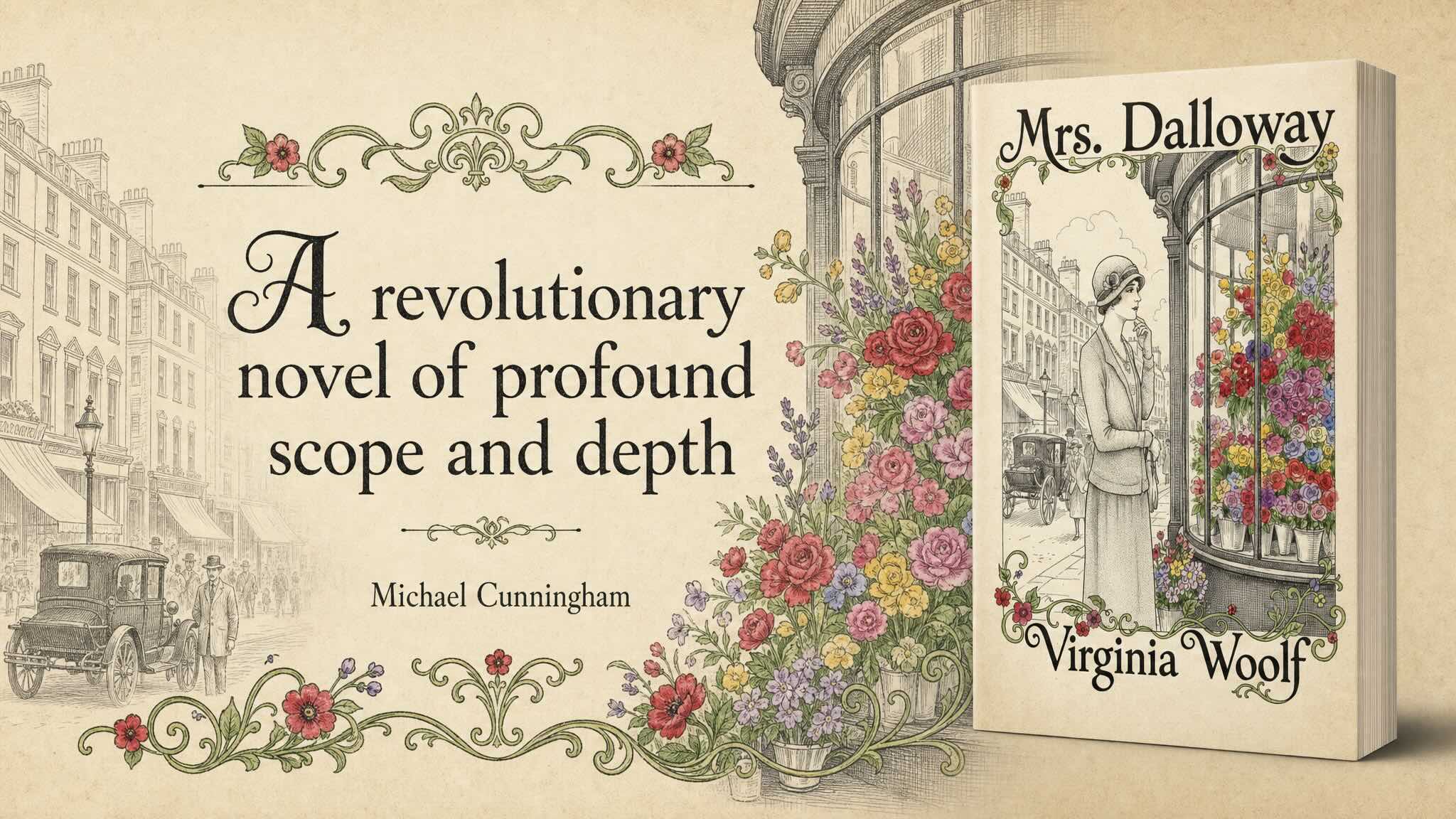
Image generation works best when your prompt is specific. The more clearly you describe the subject, action, setting, and style you want, the closer the result will be to what you had in mind. This guide covers how to structure prompts, work with reference images, and refine results inside Insight.
Where to Generate Images in Insight
Insight has two places for image generation:
- AI Chat: from any chat conversation, with the Image Generation tool enabled. Type a prompt, or drag an existing image into the chat window to edit or work from it.
- Create Artwork tool: Purpose-built for book covers, Amazon A+ content, and marketing graphics, you can find this tool by clicking Actions > Image Tools > Create Artwork. Use this when you want to choose from lists of options instead of writing a prompt.
Any image you generate can be saved to your document as a related resource, set as the document’s preview cover, downloaded, or opened in AI Chat for further refinement.
A note on image models: You can choose whether to use GPT or Google to generate images in AI Chat. Go to User Menu > Account > Image Generation and choose either GPT Image or Google Nano Banana.
A Simple Prompt Formula
Four parts cover most cases:
- Subject — the main focus, described with enough specificity to be unambiguous. Not “a woman” — try “a woman in her 30s, wearing a tailored navy blazer, dark hair pulled back.”
- Action — what’s happening. “Holding a hardcover book, mid-turn toward a bookshelf.”
- Setting — the environment. “A warmly lit private library with floor-to-ceiling oak shelves.”
- Style — the visual approach. “Editorial photography, soft natural light, shallow depth of field.”
Put together: “A woman in her 30s, wearing a tailored navy blazer, dark hair pulled back, holding a hardcover book, mid-turn toward a bookshelf in a warmly lit private library with floor-to-ceiling oak shelves. Editorial photography, soft natural light, shallow depth of field.”
This formula works whether you’re drafting a book cover, a scene illustration for a novel, a character portrait, or a marketing image.
Stronger Results: A Few Additions That Help
- Lighting. Be explicit. “Golden hour,” “overcast studio lighting,” “moody low-key lighting,” “bright morning daylight.”
- Camera angle and framing. “Close-up,” “wide establishing shot,” “low-angle,” “top-down flat lay.”
- Color palette. “Muted earth tones,” “high-contrast black and white,” “pastel spring colors,” “jewel tones against a dark background.”
- Genre or period cues. Especially useful for publishing contexts: “1970s paperback pulp aesthetic,” “Penguin Classics minimalist cover,” “contemporary literary fiction cover design,” “Victorian-era botanical illustration.”
- Text inside the image. If you want visible words — on a sign, a book spine, a banner — put them in quotes or ALL CAPS to signal that the wording should be exact. Specify the font style (“serif,” “bold sans-serif,” “handwritten script”). Shorter is more reliable, though newer models can handle denser text well. For tricky words (brand names, uncommon spellings), spell them out letter-by-letter in the prompt, and add “exact, verbatim, no extra characters” to reduce misspellings or duplicated text.
Working With Reference Images
You don’t have to start from a blank prompt. Insight lets you bring in a reference image in two ways.
In AI Chat:
- Drag and drop an image into the chat window, or click the paperclip (Sources) to attach one.
- Then prompt around it — describe the change or the new scene you want.
In the Create Artwork tool:
- Under Reference image, either upload from your computer or use Browse Library (which includes images from your documents and previously generated artwork).
- Choose how the reference should be used:
- Generate similar image — useful for covers in a series.
- Use as base or background — the AI builds on the image itself.
- Custom instructions — describe exactly how the reference should be applied.
Common ways to use a reference image:
- Style transfer. “Take this sketch and render it as a detailed 3D illustration.”
- Targeted edits. “Keep this image exactly as it is, but change the coffee mug on the table to a glass of iced tea.”
- Subject consistency. Upload a reference and ask for the same person, object, or setting in a new scene. Useful for series covers or illustrated books with recurring characters.
- Combining elements. Upload two images and describe how they should combine — for example, “use the color palette of the first image with the landscape of the second.” If the model is misreading which image is which, index them explicitly: “Image 1: product photo. Image 2: style reference. Apply the style of Image 2 to Image 1.” The indexed form is especially reliable with OpenAI-based models.
If the result drifts too far from your reference, add “strictly maintain the original composition” or “do not change the overall layout, only replace [specific element].”
Refining a Result
You don’t always get the image you want on the first try. Iteration is part of the workflow, and Insight is set up to support it.
- In AI Chat, keep replying with adjustments. Gemini-based models retain conversation context well — small follow-ups like “remove the bird in the upper-left corner” or “make the lighting warmer” usually work without re-describing the whole scene. OpenAI-based models can lose track of earlier details across turns; if you notice the image drifting (faces changing, composition shifting), re-state the elements you want preserved explicitly on each edit.
- In Create Artwork, click Open in chat below any generated image to move it into AI Chat, where you can continue refining conversationally.
- To re-run Create Artwork with small changes, use the History tab and click Restore these settings, then adjust before regenerating.
Common fixes:
- Unwanted object: “Remove the bird flying in the background.”
- Wrong color or material: “Change the jacket from leather to wool. Keep everything else the same.”
- Wrong mood or lighting: “Keep the exact composition, but change the lighting to a rainy night.”
- Misspelled or incorrect text: “Fix the text on the sign to read exactly ‘Open Daily’ in a clean serif font.”
- Too much change from the reference: “Strictly maintain the original composition; only swap [the specific element].”
Know When to Start Over
Image models drift over repeated edits. After enough iterations on the same image, you’ll notice one or more of:
- Changes getting partially applied, or ignored entirely
- Faces, proportions, or composition shifting without being asked
- The image looking progressively softer, oversaturated, or “cooked”
There’s no hard cutoff, but this often shows up somewhere in the 5–10-edit range — sooner for identity-sensitive work, later for broad atmospheric tweaks. When you see it:
- Save your best intermediate image. Start a fresh chat, upload that image, and continue editing from there. A new session resets the conversation.
- Branch at good states. Before an experimental edit, download the current best version so you have an anchor to return to.
- Consolidate changes into a single instruction when you can, rather than chaining many small edits.
- Re-anchor with the original if the image has strayed too far. Upload the original image again and tell the model to use it as the authority.
- In Create Artwork, use History > Restore these settings to regenerate cleanly rather than chaining edits on an already-generated image.
Tips for Specific Image Models
Insight supports two image generation models, and your admin sets which one is active. Most of the advice in this guide applies to both, but each has quirks worth knowing about when you want precision results.
Nano Banana / Gemini (Google)
- Subject-first prompts work naturally. “A woman in a library…” is a fine way to start; you don’t need to front-load the scene.
- Iteration context persists well. Small conversational tweaks across multiple turns in AI Chat usually stick without re-specifying earlier details.
- Reference images are forgiving. You can describe them in natural language without indexing.
- Text in images gets error-prone as length grows. Keep text short (3–5 words is a good ceiling for reliable spelling) and specify the font style.
GPT Image (OpenAI)
- Prompt order matters more. Try scene → subject → details → constraints. For complex prompts, use short labeled segments or line breaks rather than one dense paragraph.
- Repeat preservation language on every edit. This model doesn’t always carry constraints forward between turns. For cover portraits or recurring characters, re-state exactly what should stay the same each time: “Do not change her face, facial features, skin tone, body shape, pose, or identity. Preserve her likeness, expression, hairstyle, and proportions. Change only the [specific element].”
- Index reference images explicitly. Instead of “the first image,” use “Image 1: [description]. Image 2: [description].” Then describe the interaction between them.
- Photography-specific vocabulary works well. For photorealism, use cues like “shallow depth of field,” “motion blur”, “film grain,” “taken on a real camera,” “candid, no heavy retouching.”
- Text in images is more reliable than on Gemini. You can push beyond a handful of words, though shorter is still better for accuracy.