
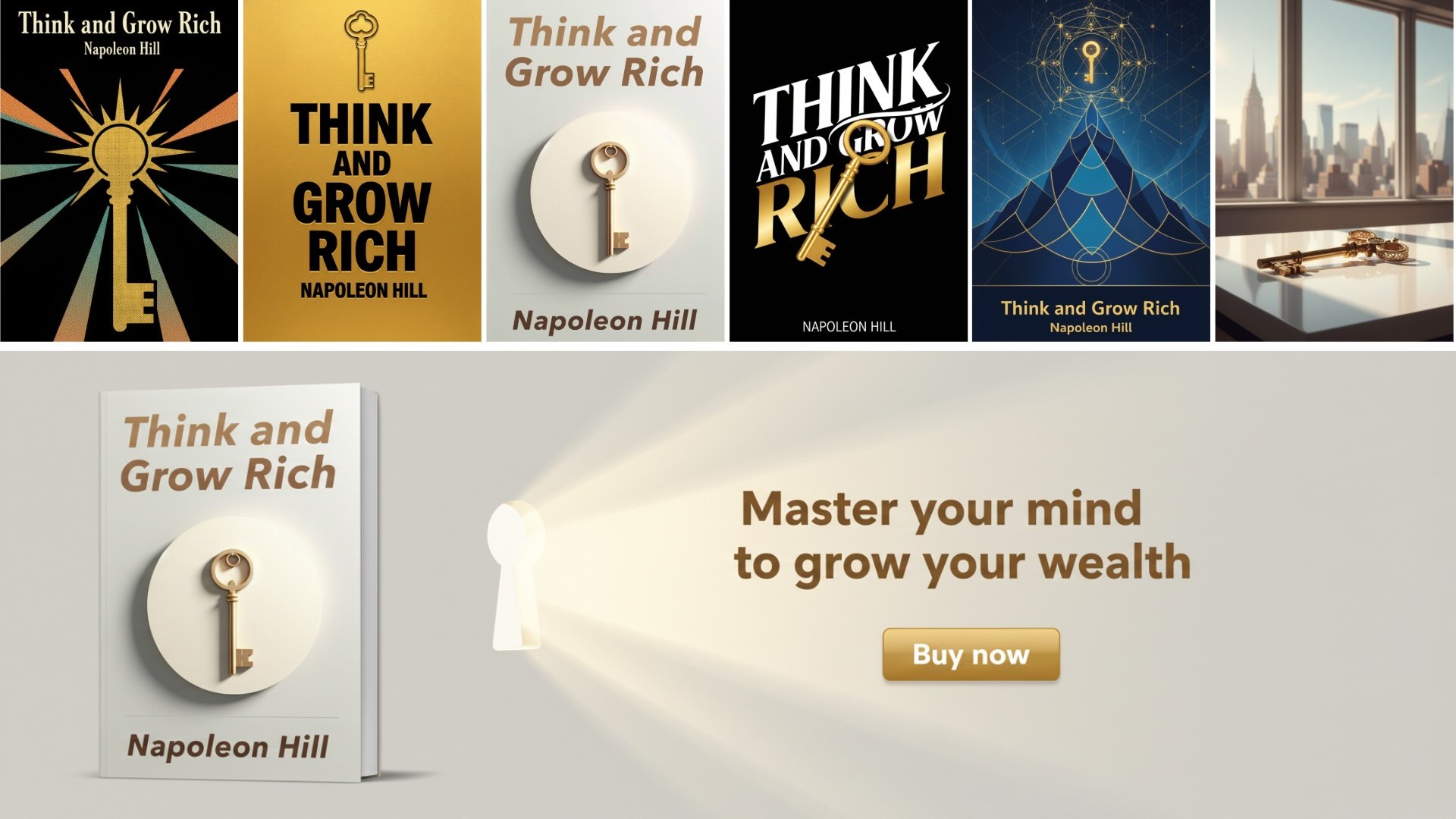
Inside This Guide:
Insight’s new “Create Artwork” tool uses powerful AI image generation to help you draft book cover designs and create online graphics. This tool:
- Is aware of your book’s content
- Generates artwork in different sizes and styles
- Includes pre-defined settings and custom options
- Uses the latest AI image capabilities
Basics of the Tool

The “Create Artwork” tool is aware of the content of your book. It dynamically creates images based on the settings you choose.
Open the tool: From a book, click Actions > Image tools > Create artwork
Artwork Settings tab:
- Choose the size, style, and elements you want in your image.
- The style selector includes a “Custom” option if you want to define your own style.
- Optional: Upload a reference image and use the selector to choose how the image should be used.
- Optional: Enter custom instructions in the “Advanced options” section. This could be something simple like colors or elements to include, or a detailed image generation prompt.
- Then click the “Create Artwork” button at the bottom of the window
- Four different images will be created based on your settings and instructions.
Generated Artwork tab: See the current set of images you generated.
History tab: Browse through the previous images you’ve created for this particular book.
Book Cover Designs
Create a book cover design: Choose “Book cover” from the “Asset type” drop-down, then choose the aspect ratio you want to use.
Experiment with different styles and custom instructions. Or try a couple of the ideas below.
Use AI Chat to Create a Custom Style
- Chat with your book (from your book, click the “AI Chat” button, or add your book as a source to a chat conversation).
- Ask for some book cover design styles that match the content and genre of your book.
- Ask AI to write a design style prompt
- In the Create Artwork tool, choose Custom from the Style selector and enter your prompt.
Use AI Chat to Help Write Additional Instructions
Use the “Additional instructions” field to provide more details about what you want in the image. This could include:
- Objects to include
- Colors to use
- Where to place elements
- A scene or a character from the book
Or, head to AI Chat to brainstorm ideas and create prompts for the “Additional instructions” field:
- Chat with your book (from your book, click the “AI Chat” button, or add your book as a source to a chat conversation).
- Ask for some book cover ideas that match the content and genre of your book.
- Ask AI to write an image generation prompt for your favorite idea
- In the Create Artwork tool, enter your prompt into the custom instructions field in “Advanced options”.
Generate a Cover for the Next Book in a Series
- Upload a book cover as reference image (the previous book in the series, for example)
- Choose “Custom instructions” from the “How to use this image” selector.
- Then enter a prompt like this into the custom instructions field:
Use this book cover as a reference for style, layout, and overall series branding. Create a new book cover for [TITLE] by [AUTHOR] that clearly belongs to the same series, but introduce unique elements—such as a different main image, color accents, or small design details—that reflect the new book’s theme. Be creative with the individual touches while preserving the series identity.
Amazon A+ Images
Create Amazon A+ images: Choose “Amazon A+” from the “Asset type” drop-down, then choose the aspect ratio you want to use.
Use this option to create images similar to your existing book cover design, or use specific instructions combined with different styles to come up with new ideas.
Place a 3D Book in a Banner
- Upload your book cover as reference image
- Choose “Custom instructions” from the “How to use this image” selector.
- Then enter a prompt like this into the custom instructions field (consider adding details about the background and other elements to include):
This is a book cover. Include a 3D version of this book on the left side of the image. Use similar design, colors, and fonts in this image. Include a the headline "[ENTER HEADLINE TEXT HERE]" and a call to action button that says "Get your copy today"
Use Design Elements from a Book Cover
- Upload your book cover as reference image
- Choose “Custom instructions” from the “How to use this image” selector.
- Then enter a prompt like this into the custom instructions field:
Place the [ELEMENT] from this image in the bottom left corner. Use the same background color. In the center of the image, place the text "[HEADLINE / QUOTE / TAGLINE]" in a similar font in the center of the image.
Concept Art
Create images that can be used as inspiration for a book cover design, on social media, or in reader guides and other material about your book. Below is one example.
Generate Scenes From the Book
- Select a style you want to use
- OR, upload a reference image and choose “Generate similar image” from the “How to use this image” selector.
- In the custom instructions field under “Advanced options” enter the following prompt:
Select a scene from the book and generate an image of that scene. The generated image must very closely match the style, color palette, mood, and artistic techniques of the provided reference image.
Work With the Images
Once you’ve generated a set of images, there are a few ways to use them. Hover your mouse over an image to reveal four buttons.

- Save to resource: The image will be saved to the “Images” tab of your book. Save your favorite options to quickly find them again later.
- Set as preview: Set this image as the preview image (cover image) for your book in Insight.
- Download: Save the image to your computer.
- Chat with the image: This loads your image into a new AI Chat conversation, where you can enter prompts to make changes, generate alt text, and more.
Re-use Previous Settings
If you’d like to generate more images using settings from your history:
- In the History tab, click on a set of images
- Click the “Restore these settings” button to automatically fill in the tool with the settings and instructions used to create those images
- Regenerate or adjust those settings and create new images
