
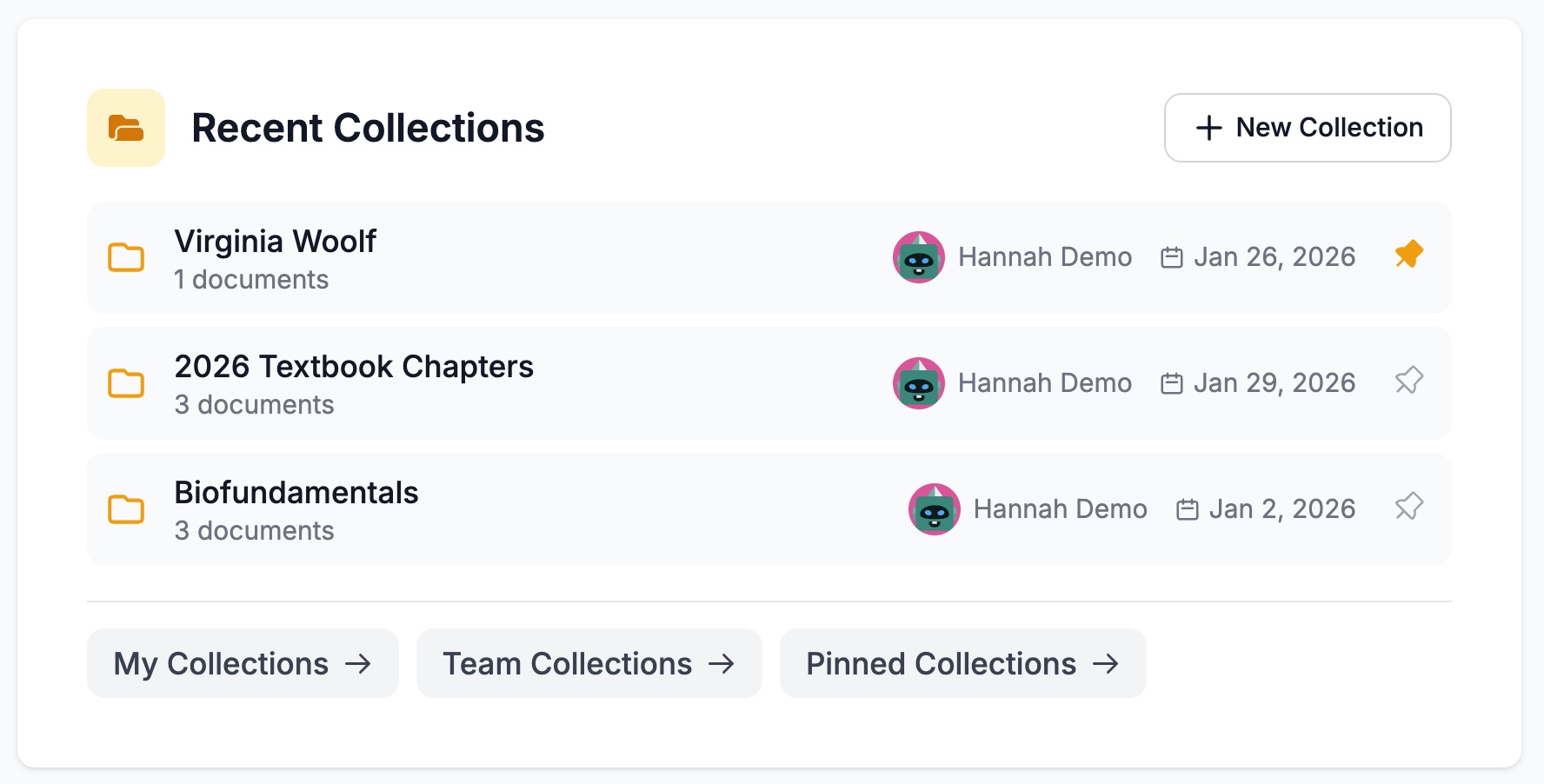
Collections help you organize related documents in Insight. Think of them as flexible folders—group books for a seasonal list, keep a series together, or collaborate with your team on a project.
Documents can be in more than one collection at once, and it’s simple to add and remove documents from a collection.
Create a Collection
- Click Collections in the left sidebar, or go to the collections section on your dashboard
- Click New Collection
- Enter a name for your collection
- Choose who can see it:
- My team — Everyone on your team can access it
- Just me — Only you can see it
- Click Create
That’s it—your collection is ready to use.

Add Documents to a Collection
There are a few ways to add documents, depending on where you’re working.
From a document you’re viewing:
- Click the blue Collections button (below the cover)
- Check the collections you want to add it to
- Done—it’s added immediately
From My Documents or search results:
- Select documents using the checkboxes
- Click Actions > Add to Collection
- Choose a collection (or create a new one)
When uploading:
- During batch upload, select a collection to add all uploaded files to it automatically

Remove Documents from a Collection
- Open the collection
- Select the documents you want to remove (use the checkboxes)
- Click Actions > Remove from collection
The documents are removed from the collection but stay in Insight—they’re not deleted.
Share a Collection with Your Team
When creating a collection:
- Choose My team for visibility, and everyone on your team can see it
For an existing collection:
- Open the collection
- Click Actions > Edit
- Change visibility to My team
- Click Save
To make a shared collection private again:
- Edit the collection and change visibility back to Just me
Pin Your Favorite Collections
Pin collections you use often so they’re easy to find.
- In the Collections list, click the pin icon next to any collection
- Pinned collections appear at the top of your list and on your dashboard
- Click the pin icon again to unpin
Find Your Collections
From the sidebar:
- Click Collections to see all your collections
From the dashboard:
- Your recent collections appear in the Collections section
- Use the quick links: My Collections, Team Collections, or Pinned Collections
Search for a collection:
- Use the search bar at the top of the Collections page
- Or click the alphabetical buttons (A-Z) to filter by name
Open and View a Collection
- Click a collection name to open it
- You’ll see all the documents inside
- Switch between grid view and list view using the icons
- Sort by Date, Title, or Type
Quick Reference
| Task | How To |
|---|---|
| Create a collection | Collections > New Collection |
| Add a document | Open document > Collections button |
| Remove a document | Select in collection > Actions > Remove from collection |
| Share with team | Edit collection > Set visibility to My team |
| Pin a collection | Click pin icon in Collections list |
Going Further with Collections
Once you’re comfortable with the basics, here are more ways to work with collections.
Chat with All Documents in a Collection
You can open AI Chat with every document in a collection loaded as sources:
- Open the collection
- Click Actions > AI Chat
- A notebook opens with all documents ready to chat with
- Ask questions across your entire collection
Export Collection Data
Download metadata as a spreadsheet:
- Open the collection
- Click Actions > CSV export
- A CSV file downloads with metadata for all documents
Generate a formatted report:
- Open the collection
- Click Actions > Export report
- Select which fields to include
- Choose Word or PDF format
- Optionally add your logo and brand colors
- Click Download Report
Bulk Actions
Select multiple documents in a collection to act on them all at once:
- Use checkboxes to select documents (or click Select All)
- Click Actions to see available options:
- Remove from collection
- Add to collection (add to a different collection)
- Download selected
- Export report
- Delete (permanently removes from Insight)
Delete a Collection
- In the Collections list, click the three dots menu on the collection
- Choose one of these options:
- Delete — Removes the collection but keeps all documents in Insight
- Delete with all resources — Removes the collection AND permanently deletes all documents inside
Be careful with “Delete with all resources”—this cannot be undone.
All Collection Actions
Click the Actions button (three dots) on any collection for the full menu:
| Action | What It Does |
|---|---|
| View Details | Open the collection |
| Edit | Change name or visibility |
| Upload to this collection | Add new documents directly |
| Share | Share with specific users |
| View log | See activity history |
| AI Chat | Chat with all documents |
| CSV export | Download metadata spreadsheet |
| Export report | Generate Word or PDF report |
| Delete | Remove collection (keeps documents) |
| Delete with all resources | Remove collection and all documents |
Search Collections
Search collections are dynamic—they automatically include documents that match search criteria you define. When new documents are uploaded that match, they appear in the collection automatically.

Create a Search Collection
- Go to Search in the sidebar
- Set up your search:
- Enter search terms
- Select resource types
- Add filters (author, tags, keywords, etc.)
- Click Run Search to see what matches
- Click Actions > Save as Search Collection
- Give it a name and choose visibility
- Click Create
Your search collection appears in the Collections list with a “Search Collection” badge.
Example Search Collections
| Collection Name | What It Captures |
|---|---|
| All YA Novels | Every Teen & Young Adult Novel in your library |
| 2027 Uploads | Everything uploaded this year |
| Priority Titles | Documents tagged “priority” |
| Needs Review | Documents tagged “needs-review” |
View or Edit the Search Criteria
- Open the search collection
- Click Actions > Edit
- Click View Search to see the original criteria
Convert to a Manual Collection
If you want to stop a search collection from updating automatically:
- Open the search collection
- Click Actions > Edit
- Click Disconnect from Search
- Click Save Changes
The collection keeps its current documents but won’t update anymore. You can then add or remove documents manually.
Note: This can’t be undone—you’d need to create a new search collection to get the dynamic behavior back.
When to Use Each Type
| Manual Collections | Search Collections |
|---|---|
| Curated selections | Auto-updating lists |
| Arbitrary groupings | Pattern-based groupings |
| Specific documents only | All documents matching criteria |
| Book series, project folders | “All novels,” “Priority titles,” “2027 uploads” |
Tips for Better Collections
Use clear names
- Good: “Spring 2027 Fiction”, “Smith Author Series”, “Frankfurt Rights”
- Avoid: “Misc”, “Stuff”, “New folder”
Combine tags with search collections
- Create tags like “priority” or “needs-review”
- Create search collections based on those tags
- Now just tagging a document adds it to the right collection automatically
Pin what you use most
- Pin your most-used collections for quick access from the dashboard
Need Help?
Questions about collections? Email us at support@veristage.com.